
Real-Time Data Logging with SQLite — Install DB Browser to View Python SQLite Databases
What is SQLite?
SQLite is a lightweight, open-source database engine that stores data in a single .db file — no server setup required. It’s one of the most popular database systems in the world. It functions similar to excel but allows for much larger data storage than excel without the system crashing.
- You can write new data and read existing data at the same time — perfect for logging real-time data (like prices, sensor readings, or server logs) while plotting or analyzing it on-the-fly.
- It’s fast, portable, and easy to use — no setup or user management needed.
- Works well with Python, using libraries like
sqlite3,SQLAlchemy, andPandas.
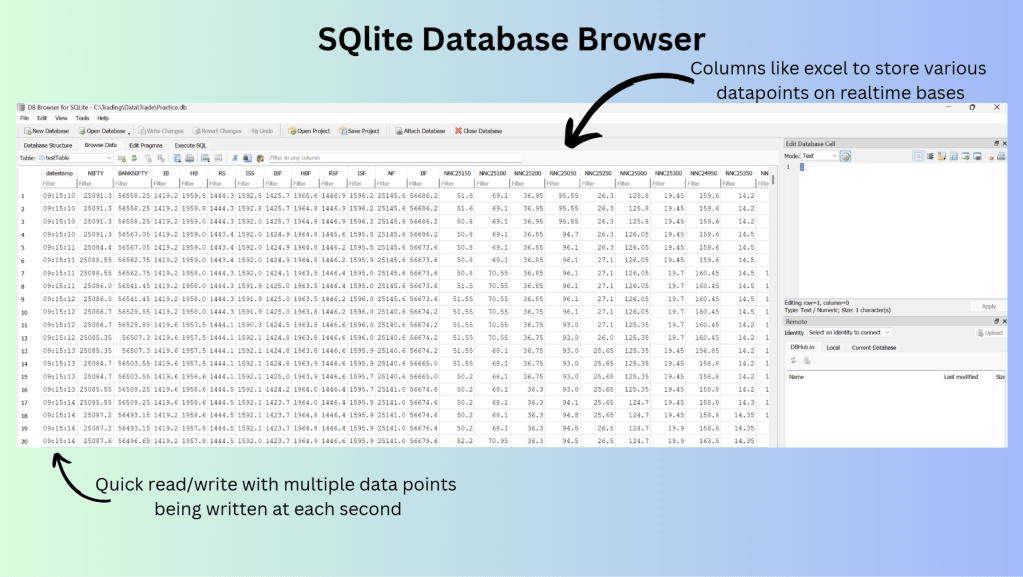
How to Install DB Browser for SQLite
DB Browser for SQLite is a free, open-source tool that lets you view, edit, and manage SQLite database files through a simple graphical interface — no SQL knowledge required!
Download and Install
- Go to the official download page:
👉 https://sqlitebrowser.org/dl/ - Choose your operating system:
- Windows: Download the
.exeinstaller. - Mac: Download the
.dmgfile. - Linux: Use the appropriate package manager command (listed on their website).
- Windows: Download the
- Install the application like any other program.
How to Open Your Python SQLite .db Files
- Open DB Browser for SQLite.
- Click on Open Database.
- Select your
.dbfile (created by your Python script — example:data_logger.db). - Browse the database:
- Click Browse Data to view records.
- Click Execute SQL to run queries.
- Click Database Structure to see the tables and columns.
As a practice, I prefer reading the sqlite DB in python rather than reading the database stored in the DB. The above viewing of data using a sqlite DB Browser helps if you want to view the data casually without having to run python files repeatedly. You can also do a sanity check of if the realtime/historical data is being stored correctly by refreshing the Database on the browser.
 Dad Quant